Chrome Plugin Approval Demo


See enhanced instructions below.
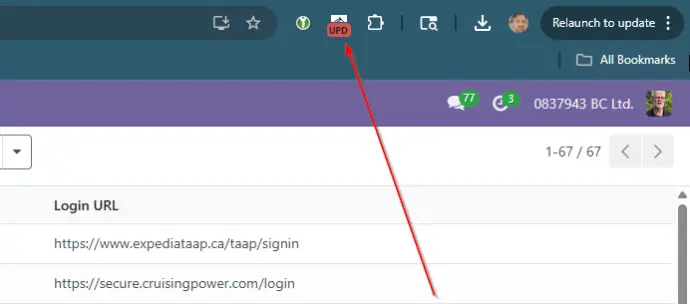
1. Open the plugin sidebar by clicking on the icon.
2. Choose the gear icon
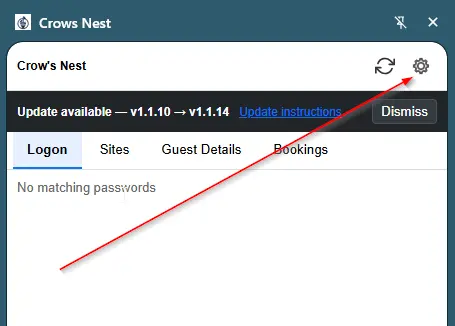
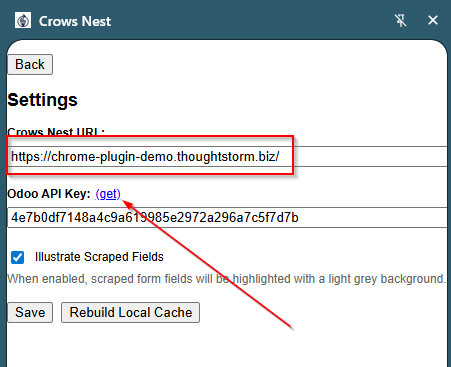
3. Get the API token
For the URL enter: https://chrome-plugin-demo.thoughtstorm.biz/
4. Press the "get" link to get the API key.
5. Choose create key
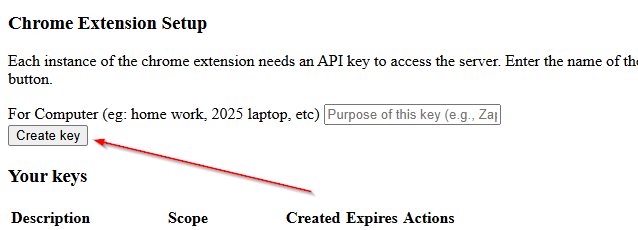
6. Copy the key
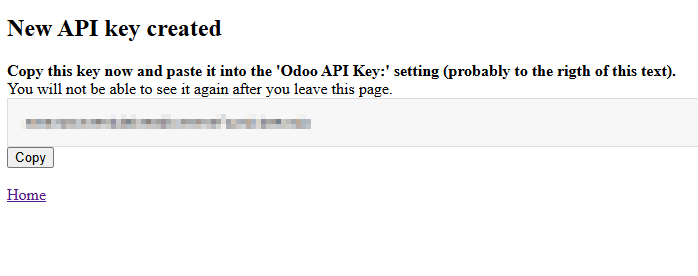
7. Paste it into the sidebar
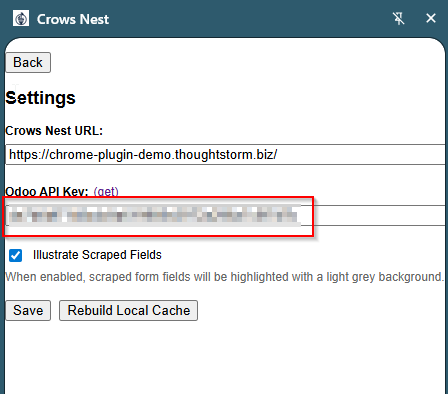
8. And press save.
Now visit a live site.
https://www.expediataap.ca/taap/signin
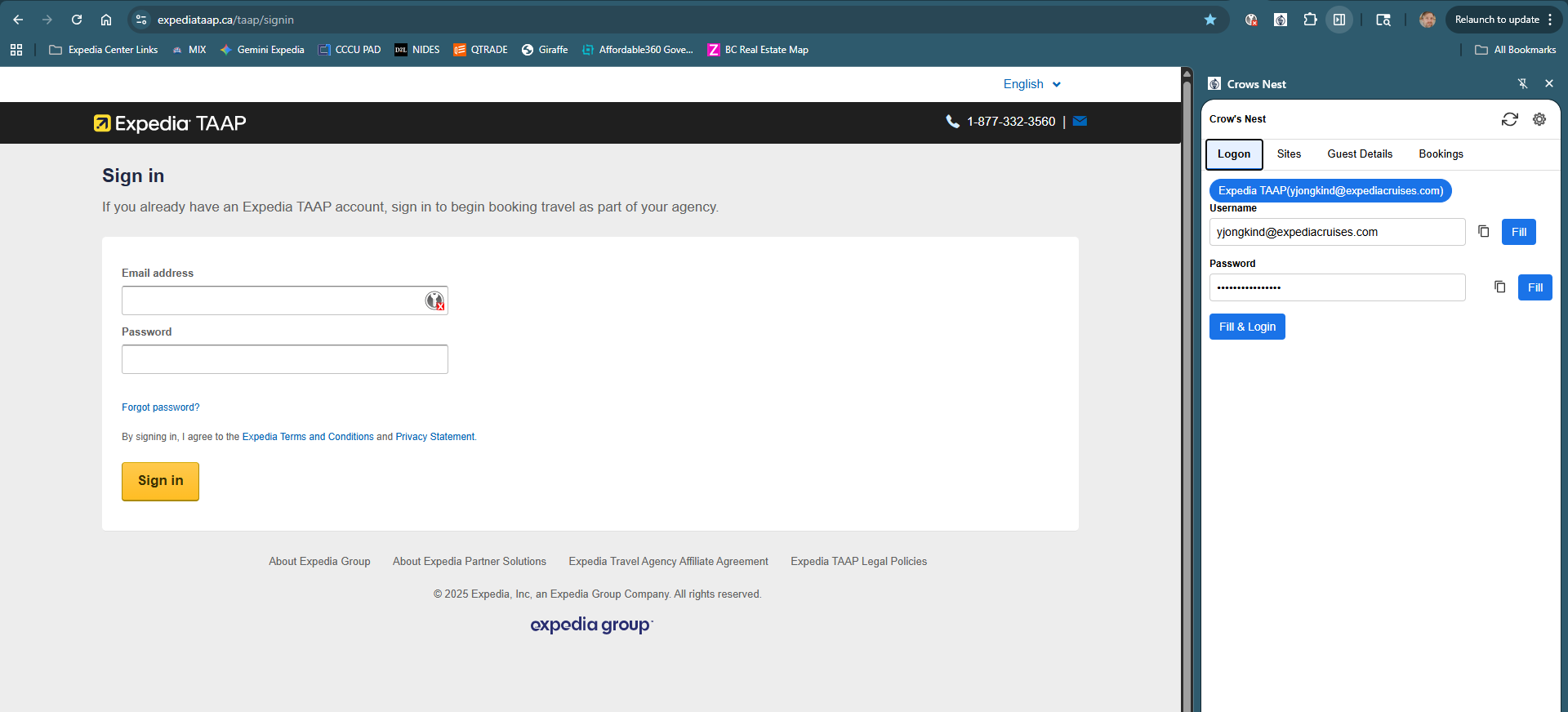
Press "Fill and Logon" from the plugin to logon.
You may have to hide and re-show the plugin the first time after logon.
9. Browse to booking creation and select guest
Click around towards booking a flight. Details don't matter. Once you get to the confirmation screen you will get here.
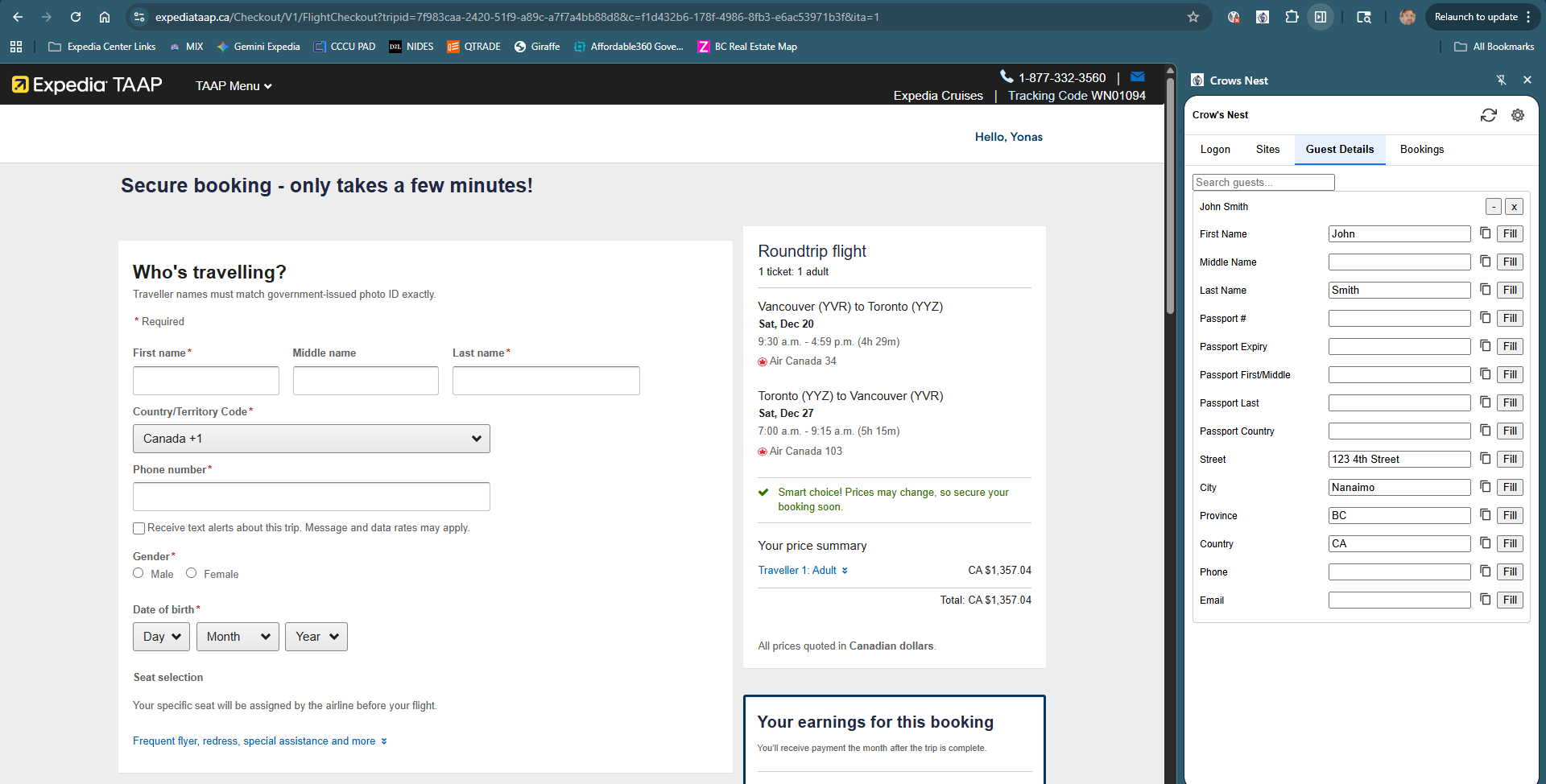
The fill buttons do not work, but they can be configured to be the same as the password button. You can also use the copy buttons to make it easy to cut and pasted values from the guest to the form.